How to Export a Claude Chat or Project to ChatGPT
Export a Claude chat to ChatGPT the only way that works: as a file it can read. Plus how a Claude project maps onto a ChatGPT project, and moving memory.
To export a Claude chat to ChatGPT, save the chat as a file (Markdown works best) and upload it to a ChatGPT chat or project, where ChatGPT reads it as reference. Neither company offers an importer: ChatGPT can't add a Claude conversation to its chat history, so you can't carry on the old thread as if it had started there. For a whole Claude project, rebuild it as a ChatGPT project. The instructions go into project settings, the knowledge files go into project files, and the chats you still need go in as files.
This guide covers your own Claude chats and projects, the ones you can open on claude.ai. Menus, limits and plan details are from OpenAI's and Anthropic's help pages as checked on 18 October 2026.
Can you export a Claude chat to ChatGPT?
Yes, as a file. No, as a conversation. ChatGPT has no option to import chats from another assistant, and OpenAI's own help page on moving exported chats between ChatGPT accounts says it can't add old conversations to a chat history. The uploaded file is "available as reference in that conversation". A Claude chat gets the same treatment.
That's less of a loss than it sounds. With the transcript attached, ChatGPT can answer questions about it and pick up where it stopped.
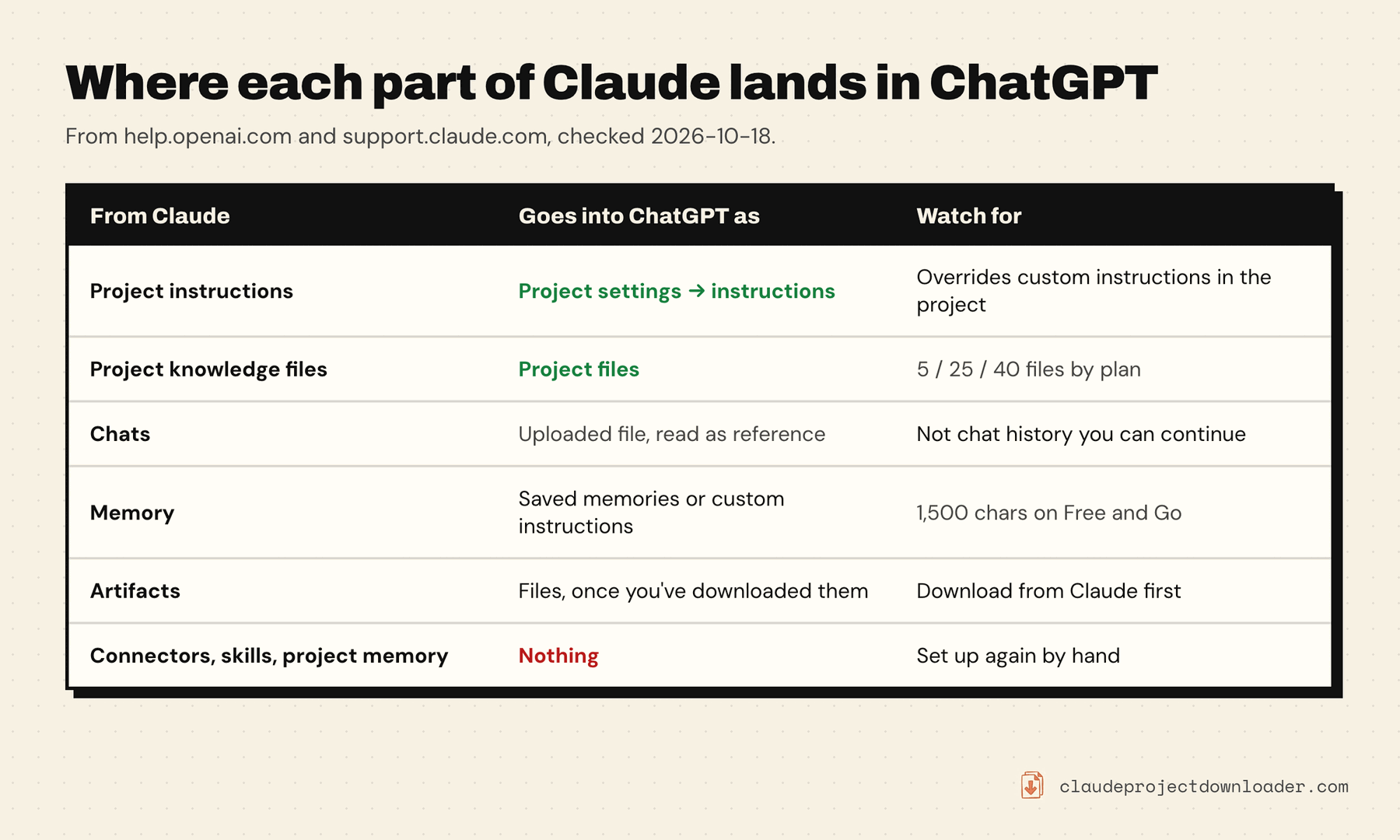
Each part of Claude has a different place to go:
How to export a Claude chat to ChatGPT
1. Get the chat out of Claude as a file
Pick the free route that fits the chat:
- A short chat: each Claude reply has a Copy button that copies it as Markdown. Paste the replies into ChatGPT, or into a file. Your own messages aren't included, so add them where they matter.
- One chat, any length: the open-source claude-chat-exporter bookmarklet saves the chat you're looking at as a Markdown file, free.
- Every chat you have: Settings → Privacy → Export data emails you a link to your whole history as JSON. The link expires after 24 hours. Anthropic says the export can't be imported into another Claude account (Export your Claude data), but ChatGPT can still read a JSON file you upload. Expect one large file, so cut out the conversations you need first.
How to export Claude chats covers each of these in more detail, including PDF.
Markdown is the format to choose when you have one. It's plain text, so ChatGPT reads every word, and headings, lists, tables and code blocks survive. ChatGPT's help pages list .md, .txt, .json and PDF among the file types it reads. They don't list ZIP, so unzip an archive and upload the files inside it.
2. Upload it to ChatGPT
Open a new ChatGPT chat (or a chat inside a project, see below), click the + button, upload the file, then tell ChatGPT what to do with it. For example:
This is a conversation I had in Claude. Read it, then summarise the decisions we reached and the open questions. After that, we'll continue from the last message.
If its summary misses something, point it to the right part of the file.
Two limits from OpenAI's file uploads guide: a text file can be up to 2 million tokens, far more than a single chat, and Free accounts can upload 3 files a day. On Free, combine chats into one file rather than uploading them one by one.
Or hand over a summary instead
If ChatGPT only needs the current state of the work, a summary often beats the transcript: it's shorter and leaves out dead ends. In the Claude chat, ask:
Write a handoff note so I can continue this in another assistant. Include the goal, what we decided and why, constraints, the current draft or code in full, open questions and the next step.
Check the note against the chat before you paste it into ChatGPT. Summaries can drop exact wording, numbers or code, so when those matter, upload the full transcript as well.
Export a Claude project to ChatGPT
ChatGPT has its own Projects, which keep chats, files and instructions together like Claude's. Skip the older advice to build a custom GPT: OpenAI plans to retire custom GPTs on 11 December 2026, per its retirement FAQ. Per OpenAI's Projects guide, every plan has them, Free included.
1. Collect the project from Claude
You need three things, plus artifacts if the project made any:
- Instructions: open the project's instructions on claude.ai and copy the text into a file.
- Knowledge files: use your original copies if you still have them. Claude has no download button for project files; how to download all files from a Claude project lists the free ways to get them out.
- Chats: export the ones you'll need (step 1 above). You rarely need every chat.
- Artifacts: download each one with Claude's Export button. How to download Claude artifacts has the details for older artifacts too.
Claude Project Downloader does the first three in one step. Open the project on claude.ai, open the extension's side panel and press Download Entire Project. You get one ZIP with instructions.md, a files/ folder with the knowledge files in their original format where Claude stores one, and a chats/ folder with every chat in the project as Markdown or JSON. For a ChatGPT account with few uploads to spare, set the chat format to PDF (one document, every chat) and use Download All Chats instead: every chat in the project arrives as one file. On the free plan, either one uses your one free bulk export. Pro makes them unlimited.
2. Create the ChatGPT project
In ChatGPT, click New project in the sidebar and give it a name. Then open the project's ••• menu, choose Project settings, and paste the instructions. OpenAI says they apply only inside the project and override your general custom instructions there.
3. Add the knowledge files
Upload the files from the files/ folder. This is where plan limits bite. OpenAI's Projects guide gives:
- Free: 5 files per project
- Go and Plus: 25 files per project
- Pro, Business, Enterprise and Edu: 40 files per project
You can upload only 10 at a time. Claude projects don't cap the file count the same way (see Claude project knowledge limits), so a large Claude project may not fit. Merge small text files into one, and leave out files the project no longer uses.
4. Bring over the chats that matter
Upload the transcripts that hold decisions, or one handoff note for the whole project, as a project file. That way every chat in the ChatGPT project can draw on them. A chat you've already started in ChatGPT can join the project too: drag it onto the project, or choose Move to project from the chat's menu. OpenAI says the moved chat picks up the project's instructions and files.
5. Test it
Ask the new project a question only one of its files can answer, and one that depends on the instructions. If both answers are right, the move worked.
Move Claude's memory into ChatGPT
Claude's memory doesn't move with your chats. Anthropic's memory guide describes getting it out as text: in a chat, ask Claude to "write out your memories of me verbatim, exactly as they appear in your memory", and save the reply.
Then decide where each piece belongs in ChatGPT:
- Facts about you and your work: in a ChatGPT chat, ask it to remember them ("Remember that I write in British English and work in Python"). OpenAI's memory guide says saved memories are details you explicitly ask ChatGPT to remember. You can review them under Settings → Personalization → Memory.
- How it should answer: put standing preferences in Settings → Personalization → Custom instructions. Free and Go allow 1,500 characters, paid plans 5,000, per OpenAI's custom instructions page.
- Things that belong to one project: put them in that project's instructions or a file. Claude also keeps a separate memory for each project, and Anthropic doesn't describe a way to export it, so ask Claude inside the project for a summary of what it knows.
Read the list before you paste it anywhere. It may hold more about you than you want in a second service.
What doesn't carry over
- The chat itself. You can't continue a Claude thread as a ChatGPT thread. ChatGPT starts a new chat that has read the old one.
- Connectors and skills. Apps you connected in Claude and custom skills you built have to be set up again in ChatGPT, if it has an equivalent.
- Live artifacts. An interactive artifact comes over as its code or file. ChatGPT can read it, but it won't run it the way Claude did.
- Nothing leaves Claude. Your chats and projects stay there until you delete them, so keep your export as a backup either way.
Going the other way: ChatGPT to Claude
The reverse move has the same shape. Anthropic says it's "not possible to import conversation history from another AI provider into Claude", but Claude can import memory. Ask ChatGPT to write out what it remembers about you, then in Claude go to Settings → Memory, click Start import, paste it and click Add to memory. Anthropic calls memory import experimental.
For chats, ChatGPT's own export (Settings → Data controls → Export data) can take up to 7 days to arrive. Its link also expires after 24 hours. Upload the chats you need to a Claude project as knowledge files. The steps for setting up that project are the same as in moving a Claude project to another account.