Move or Export a Claude Project to Another Account
Can you export a Claude project to another account? Not by import. When Claude moves it for you, what gets left behind, and how to rebuild it step by step.
You can't export a Claude project to another account and import it there. Anthropic says its data export can't be loaded into another personal account, and it doesn't migrate data between personal accounts. There is one exception: if you're joining a Team or Enterprise organization on the same email address, Claude can move your whole personal account into it, projects included. In every other case, you rebuild the project in the new account from its parts: the instructions, the knowledge files, the chats you want to keep, and Claude's memory.
This guide covers projects and chats in your own account, the ones you can already open on claude.ai. Rules, menus and plan details are from Anthropic's help pages as checked on 17 October 2026.
Can you export a Claude project to another account?
Not as a transfer. Claude has no "move project" or "change owner" option, and the account-wide export at Settings → Privacy → Export data is, in Anthropic's words, data that "can't be imported into another personal Claude account" (Export your Claude data).
What you can do depends on where the project is going:
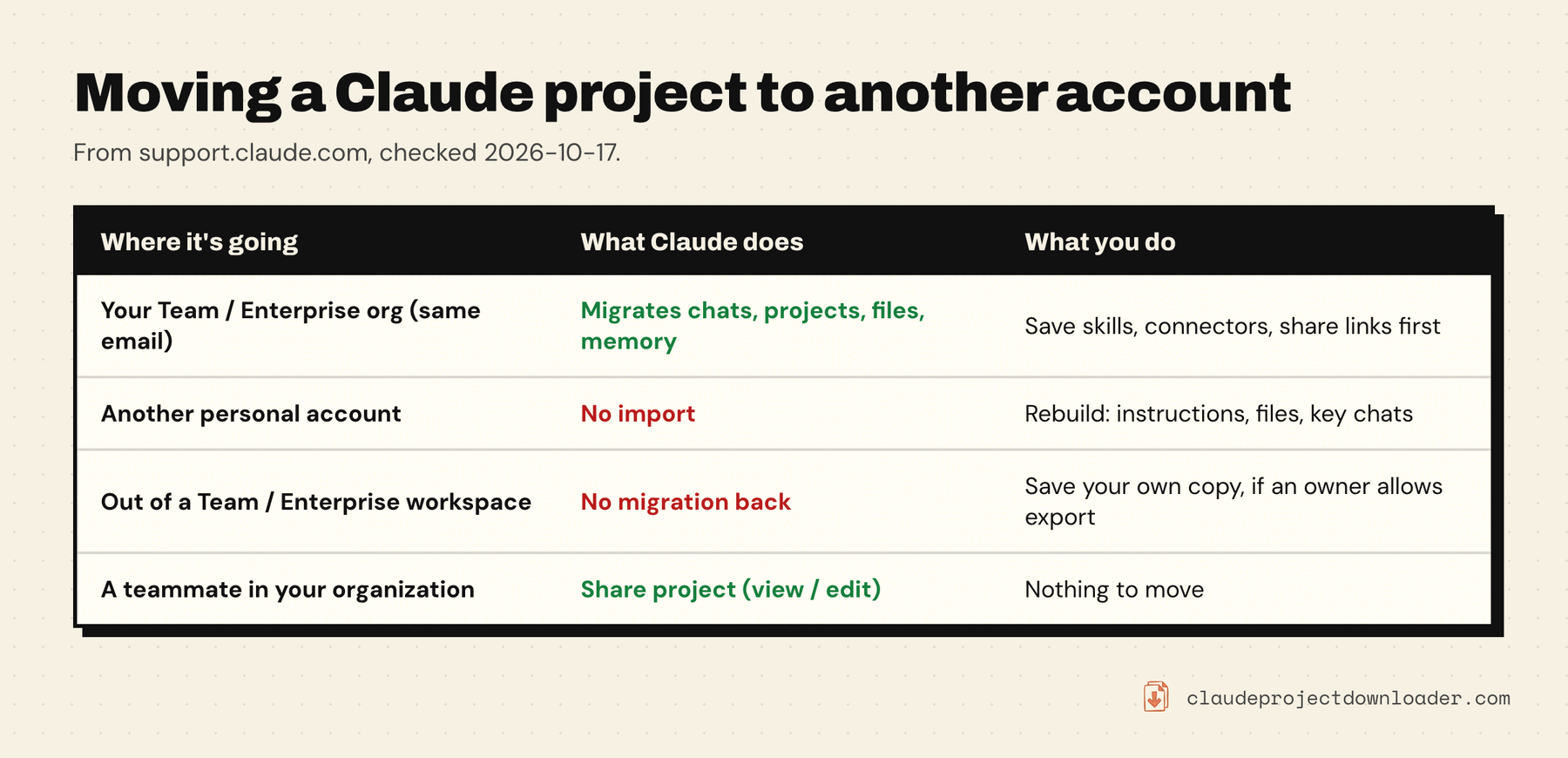
The only import tool Anthropic documents is for Claude Desktop in third-party mode, an admin-enabled setup for organizations that run Claude on their own cloud provider. It copies a claude.ai export into that local app. It doesn't put a project into another claude.ai account.
Moving into a Team or Enterprise organization
If your personal account (Free, Pro or Max) uses the same email address as your new organization, you can bring your work with you. Anthropic's migration guide lists what moves:
- chats, and the artifacts in them
- projects, with their instructions and files
- uploaded files and attachments
- Claude's memory, unless your organization has memory turned off
What stays behind: custom skills, the apps and connectors you signed in to, public share links (they stop working for good), published artifacts, and pending share invites. Save copies of those first.
To start it, switch to your organization account (click your initials in the lower left), then go to Settings → Account → Close your personal account and choose to bring your data. On a Team plan you're also offered the choice when you accept the invite.
Three things to know before you click:
- It's one-way. Anthropic says moved content "can't be moved back to a personal account".
- Your personal account closes. A Pro or Max plan bought on the web or Google Play is canceled with a prorated refund. If you subscribed through the Apple App Store, cancel it yourself first, because Apple doesn't let Anthropic do it.
- Some organizations can't receive data. Enterprise workspaces with HIPAA readiness or customer-managed encryption keys don't offer the move. Export what you need and start fresh.
Different email address, or a second personal account? The migration doesn't apply. Rebuild instead.
How to rebuild a Claude project in another account
This works for any move: a new personal account, a different email, a work account that can't receive a migration, or a copy you want to keep before leaving a workspace. Do it while you can still open the old account.
1. Collect the project from the old account
You need four things. The free routes:
- Instructions: open the project's instructions and copy the text into a file.
- Knowledge files: if you still have the originals on your computer, use those. If not, see how to download all files from a Claude project for the free ways to get them out, since Claude has no download button for project files.
- Chats: Settings → Privacy → Export data emails you every chat as JSON, with a link that expires after 24 hours. For a handful of chats, export them one at a time as Markdown.
- Memory: in a chat, ask Claude: "Write out your memories of me verbatim, exactly as they appear in your memory." Save the reply. This is the method in Anthropic's memory import and export guide.
Claude Project Downloader collects the first three in one step. Open the project on claude.ai, open the extension's side panel and press Download Entire Project. You get one ZIP with instructions.md, a files/ folder with the knowledge files in their original format where Claude stores one, and a chats/ folder with every chat in the project as Markdown or JSON, with attachments if you tick that option. Word documents come back as text, because Claude only keeps their extracted text. The free plan includes one full-project export; Pro makes it unlimited.
2. Create the project in the new account
Sign in to the new account, go to Projects and click New Project. Free accounts can create up to five projects, per Anthropic's projects help page.
3. Paste the instructions
Click Set project instructions and paste the text from step 1 (the "Instructions" section of instructions.md if you used the extension). The project's name and description go in their own fields; Claude doesn't read those in chats.
4. Upload the knowledge files
Add the files to the project's knowledge. If the old project was large and the new account is on the free plan, it may not fit: free plans don't get the search mode that lets paid projects hold about ten times more. Claude project knowledge limits explains what counts and how to trim.
5. Bring the chats you still need
Chats can't be imported as chats. They come over as reading material:
- Upload the important ones as files. A Markdown transcript added to project knowledge lets Claude refer back to it in every chat. Each one costs space, so pick the chats that hold decisions, not every chat.
- Write a short handoff note. Before you leave the old account, ask Claude in the project to list the decisions, open questions and conventions from its chats. Check it against the originals, then upload it as one file. It's cheaper than whole transcripts.
- Keep the rest as an archive. The ZIP or the official export stays on your computer, searchable and readable without Claude.
6. Import your memory
In the new account, go to Settings → Memory and click Start import, paste what you saved, and click Add to memory. On the older memory layout it's under Settings → Capabilities. Anthropic calls memory import experimental and says Claude may not keep every entry, so ask it afterwards what it learned and add anything missing.
Each project also has its own memory, and Anthropic doesn't describe a way to export one project's memory. Anything a project must remember belongs in its instructions or a knowledge file.
7. Test it before you delete anything
Ask the new project a question that only its files can answer, and one that depends on the instructions. If both come back right, the rebuild worked. Only then think about deleting the old project or account.
Leaving a Team or Enterprise workspace
Moving the other way, from a work organization to a personal account, has no migration. On Team and Enterprise plans, members can export their own chats only once an owner turns on Allow members to export their own data, and that export doesn't include the contents of files you uploaded. Project files you can still open in the workspace can be saved with the routes above.
Check your organization's policy before you copy work material out. And do it before your access ends: once you're removed from the workspace, nothing, including any extension, can reach those projects.
Sharing instead of moving
If the goal is getting a colleague into the project, you may not need to move it at all. On Team and Enterprise plans you can click Share project and give people in your organization Can view or Can edit access. Anthropic's help pages describe sharing, not a transfer of ownership, and sharing isn't available on Free, Pro or Max.
Moving a chat into a project is simpler still, and stays in one account: open the chat, click the arrow next to its name, choose Add to project and pick the project.