How to Download All Files from a Claude Project (as One ZIP)
How to download all files from a Claude project as one ZIP: the free ways, the one-click way, and which file types keep their original format.
Claude has no button to download all files from a project's knowledge base. You can open and read each file, but not save it. There are three ways to get them back: open each file and copy its text out (free, slow, and text only); ask Claude in the project to package the files for you (free, but it may rewrite them); or use a tool that fetches the files from your own project and saves them as one ZIP. The free userscript Claude Project Files Extractor and the Chrome extension Claude Project Downloader both do the last one.
All of this applies to projects your Claude account can already open. No tool can fetch files from a project you don't have access to.
The free ways first
Open and copy. Open the project, click a file in the knowledge panel, and copy its contents into a new file on your computer. For two or three text files this is fine. It doesn't work for PDFs or images, and it gets old quickly for twenty files.
Ask Claude. Inside the project, ask Claude to put every knowledge file into a downloadable ZIP without changing anything. This works more often than you'd expect, and it's free. The catch is that Claude regenerates files rather than copying bytes. A long document can come back summarized or reformatted, and PDFs come back as text at best. Spot-check the results before you delete anything.
A free userscript. Claude Project Files Extractor on Greasy Fork (MIT licence, updated September 2026) adds an export button to the project page and downloads the knowledge files as a ZIP, including real PDF files. You need a userscript manager such as Tampermonkey or Violentmonkey first. It handles files only, not chats. If that's all you need, it's a good, free answer. See the comparison of free Claude export tools for the trade-offs.
Download every file as one ZIP with Claude Project Downloader
- Install Claude Project Downloader from the Chrome Web Store.
- Open the project on claude.ai. Refresh the tab once if it was already open when you installed.
- Click the extension icon. The side panel opens and lists the project's files and chats.
- Click Download All Files. A ZIP named after the project (
name_files.zip) lands in your Downloads folder.
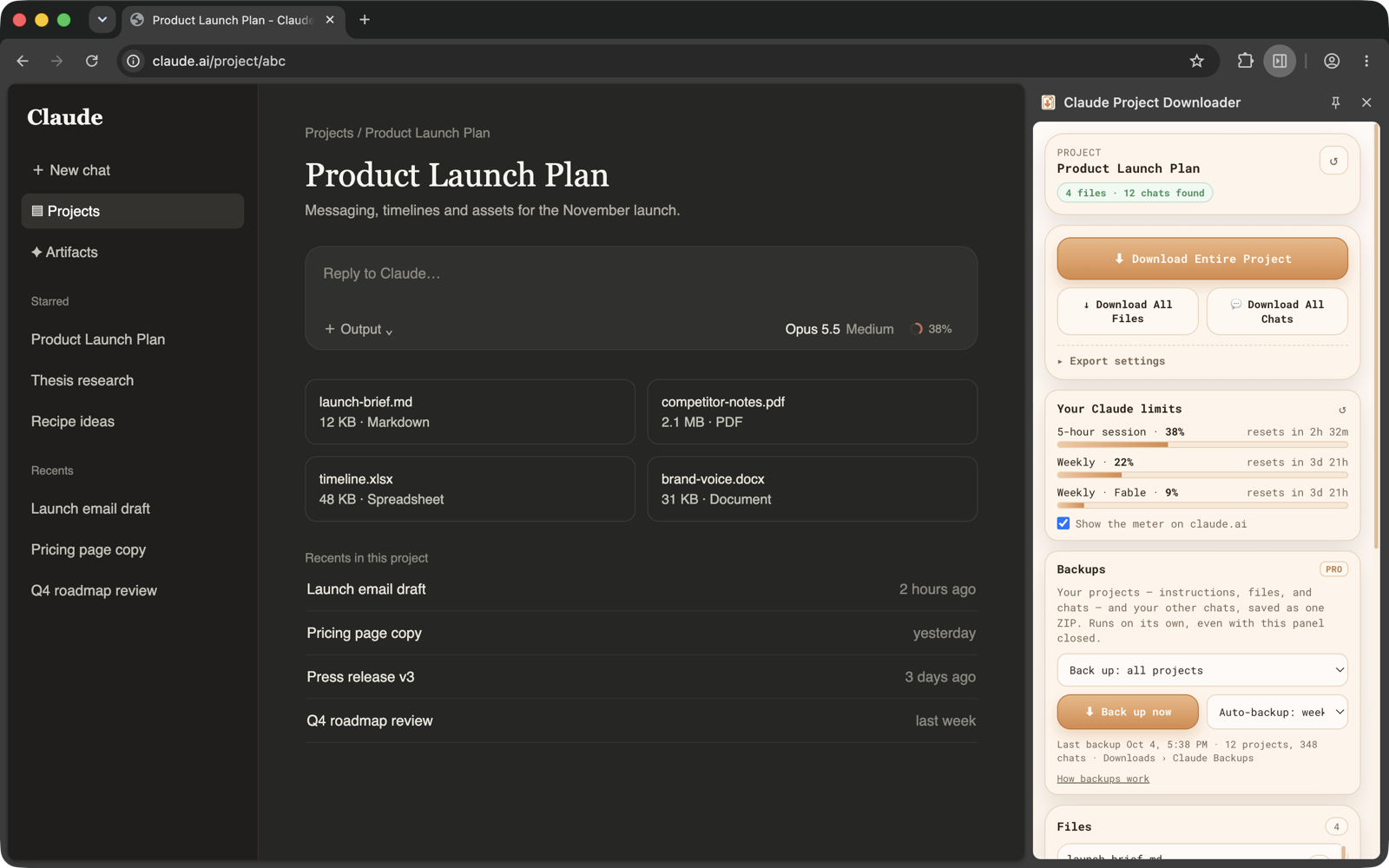
To grab just one or two files, use the download button next to each file in the panel's Files list instead.
Under Export settings you can choose:
- Native format (default): each file keeps its original extension: PDFs as PDFs, Markdown as
.md, images as images. - Markdown: text documents are converted to
.md, handy if the files are going into Obsidian or another notes app. Real binary files such as PDFs are never renamed.
The export runs in your browser with your existing claude.ai session. Nothing goes through a third-party server.
Which files come back exactly, and which don't
What you get back depends on what Claude itself stores. This is worth knowing whichever tool you use:
- Markdown, plain text, code, HTML: returned as they are.
- PDFs and images: downloaded as files. Images come back in the format Claude serves them in, which may be its WebP preview rather than your original PNG or JPG.
- Word documents (.docx, .doc, .rtf, .odt): Claude keeps only the text it extracted from these, not the original file. The extension saves them as
.txtrather than handing you a broken.docx. It tells you which files those are and offers a ready-made prompt that asks Claude to rebuild them. - Spreadsheets (.xlsx, .csv) and other files Claude can't serve: these can't be fetched directly. The panel's fallback gives you a prompt to paste into the project chat, so Claude can give you the content there.
If a file matters and you still have the original on your computer or in cloud storage, that copy is the real one. Exports are for when you don't.
Download the whole project: files, instructions and chats
Download Entire Project saves one ZIP containing:
instructions.md: the project's custom instructions- every knowledge file
- a
chats/folder with every conversation in the project as Markdown or JSON (attachments optional)
Download All Chats saves just the conversations. See how to export Claude chats for what's inside each transcript.
Free vs. Pro
The free plan gives you 5 single downloads a day (one file or one chat each) and one bulk export (Download All Files, Download All Chats, or Download Entire Project), with no account needed. Pro removes both limits and adds Back up everything: every project and chat in your account in one ZIP, on demand or automatically. That's covered in how to back up Claude projects and chats.
If the files don't show up
- Make sure you're on the project page (
claude.ai/project/…), not inside a chat. - Click ↺ Refresh in the panel, then reload the claude.ai tab if needed.
- If you installed or updated the extension with Claude already open, reload that tab so it reconnects.
The troubleshooting guide has the full list.