Export a Claude Chat to PDF: Free Ways and Whole Projects
Export a Claude chat to PDF without cut-off code or missing messages: free print and Markdown routes, plus one PDF for a whole project with a contents page.
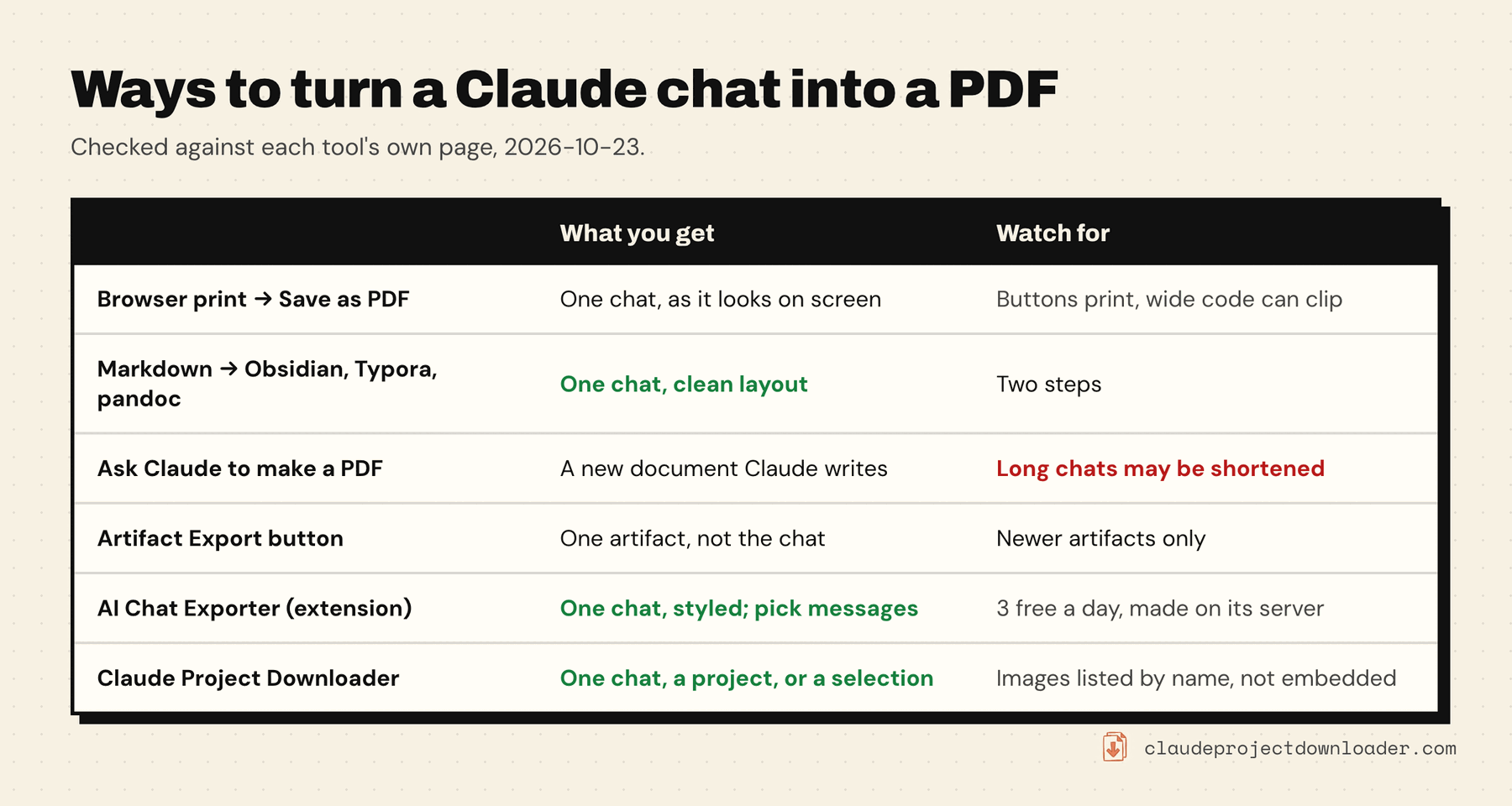
Claude has no Save as PDF button for a conversation, but you can still export Claude chats to PDF in a minute. For one short chat, open it and press Ctrl/Cmd + P, then choose Save as PDF. For a cleaner result, save the chat as Markdown first and print that from a Markdown editor, which keeps code blocks and tables whole. If you want a whole project, or a set of chats, in one PDF with a table of contents, you need a browser extension.
Everything here works on your own chats and projects, the ones you can already open on claude.ai. Menus and limits were checked against Anthropic's help pages and each tool's own page on 23 October 2026.
Can you export a Claude chat to PDF?
Not with a button in Claude. The only export Anthropic offers is Settings → Privacy → Export data, and its help page describes what it sends: an email link to your account's conversation data, in JSON. That's a full archive, not a readable document, and you can't pick one chat. It also can't be started from the iOS or Android app.
So to export Claude chats to PDF, you either print the page, convert a text export, ask Claude to write a PDF, or use a tool that does the layout for you.
If what you want is a document Claude made (a report, a slide deck), that's an artifact, and it's a different job. Artifacts built from Claude's newer templates have an Export button with PDF among the formats. How to download Claude artifacts covers that, including older artifacts.
How to export a Claude chat to PDF with your browser
This is free, built into every browser, and good enough for most short chats.
- Open the chat on claude.ai.
- Scroll up to the first message and back down, so the whole conversation has loaded.
- Press Ctrl + P (Windows, Linux) or Cmd + P (Mac).
- Set Destination to Save as PDF. In Firefox the option is called Save to PDF. In Safari, use File → Export as PDF instead.
- Open More settings before you save. Turn on Background graphics if you want code blocks to keep their shading, and lower Scale a little if long lines run off the page.
- Click Save, then open the PDF and check the first and last messages are there.
What to expect: you get the page roughly as it looks on screen. The Copy, Retry and Share controls often print along with the text. Long code lines and wide tables can be cut off at the page edge, and page breaks fall wherever they fall, sometimes through the middle of a code block.
That's fine for a chat you keep for yourself. For anything you'll share, the next route is cleaner.
Convert a Markdown copy of the chat to PDF
Markdown keeps the chat's structure as plain text, and Markdown editors lay it out properly. Two steps:
1. Get the chat as Markdown. Each Claude reply has a Copy button that copies it as Markdown, but only one reply at a time and without your own messages. For a whole chat, the free open-source claude-chat-exporter bookmarklet saves the chat you're looking at as a .md file. How to export Claude chats lists the other ways.
2. Export the Markdown to PDF.
- Obsidian: open the file and run Export to PDF from the command palette.
- Typora: File → Export → PDF.
- VS Code: install a Markdown-to-PDF extension, or open the preview and print it.
- pandoc (command line):
pandoc chat.md -o chat.pdf. By default pandoc makes PDFs through LaTeX, so per the pandoc manual you need a LaTeX engine installed. Without one, convert to HTML and print that.
Code blocks wrap instead of being clipped, tables stay tables, and nothing from Claude's interface ends up in the file.
Ask Claude to make the PDF
Claude can create PDF files in a chat when Code execution and file creation is on. On Free, Pro and Max you turn it on under Settings → Capabilities, and on Team and Enterprise it's on by default unless an owner turned it off, per Anthropic's file creation guide. Ask Claude to put the conversation into a PDF and it builds one you can download.
The catch: Claude writes the PDF from what it can still see of the chat. In a long conversation it may summarise, shorten or skip parts. That's useful for a tidy summary document, but don't treat it as a transcript.
Share-link converters
Some web tools turn a chat's public share link into a PDF. Two things to know. First, they need a public link, which anyone holding it can open. Claude's Share button now invites specific people by email by default, and per Anthropic's sharing guide only Free, Pro and Max can switch a chat to a public link. Only do that for chats you'd be happy to publish. Second, these services come and go: the best known, Claude2PDF, still shows up in search results but answered "Application not found" when we checked on 23 October 2026.
Export a whole Claude project, or many chats, to one PDF
Every free way to export Claude chats to PDF works one chat at a time. If you want a project's chats as a single document, say to hand over a piece of research or keep a readable record of a client project, a browser extension saves a lot of printing.
Claude Project Downloader can export Claude chats to PDF from every place it exports chats. It lays the conversation out as a document, then opens Chrome's own Save as PDF dialog. Because Chrome makes the file, the text is selectable and searchable, and Chinese, Japanese, Arabic and emoji print correctly with your system fonts. Nothing is uploaded to a server to make the PDF.
- One chat: click Download next to Share on the chat page and pick PDF. Tick Remember my choice to make it one click next time.
- Every chat in a project: on the project page, open the side panel, set Project Chat Export Format to PDF (one document, every chat), and click Download All Chats.
- Chats from different projects or folders: select them in the extension's Library and choose Export → One PDF.
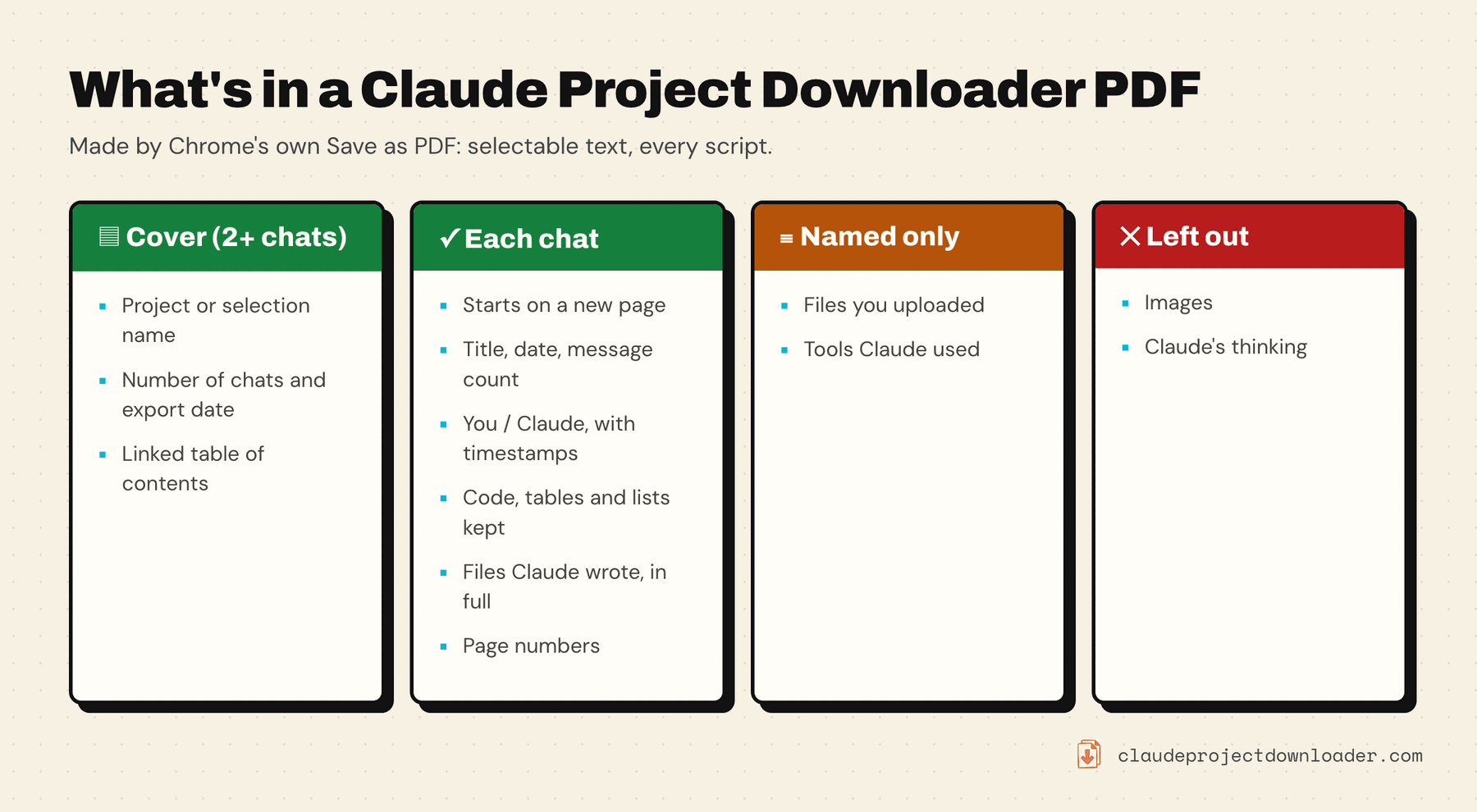
What's in the PDF:
- A cover and a linked table of contents when there's more than one chat, then each chat starting on a new page.
- Each message labelled You or Claude, with its timestamp. Headings, lists, tables and code blocks are kept, and code wraps instead of running off the page.
- Files Claude wrote out, shown in full as code blocks, and a short marker where Claude used a tool such as web search.
- Page numbers on every page, and no browser URL printed in the footer.
What isn't: Claude's thinking, and images. Files you uploaded are listed by name under the message, not embedded. If you need the files themselves, the chat's ZIP with attachments export saves them next to a Markdown transcript.
On the free plan, a one-chat PDF counts as one of your 5 daily downloads, a Library PDF counts one per chat, and a whole-project PDF uses your one free bulk export. Pro removes those limits.
Claude Code chats
Claude Code sessions you run on the web, at claude.ai/code, get the same Download control from v1.21: a download icon next to Share, with the same formats, PDF included. Claude Code in the terminal is different. Its /export command saves the current conversation as plain text (Claude Code commands), which you can then convert like any Markdown or text file.
Other Claude-to-PDF extensions
AI Chat Exporter is the extension that ranks first for this search. Its Chrome Web Store listing (v3.10.1, as of 23 October 2026) offers far more control over how one chat looks as a PDF: light or dark theme, page size and margins, fonts, a styled table of contents, Claude's thinking, and picking exactly which messages to include. If you export Claude chats to PDF to share a polished part of one chat, it's the better choice.
The trade-offs, from the same listing: PDFs are limited to 3 a day on its free plan, PDF export asks you to sign in, and the messages you pick are sent to its server to render the PDF (it says it doesn't store them). Every other format it offers runs in your browser.
Claude Project Downloader is the one to pick when the job is many chats in one document, a whole project, or a PDF made entirely on your machine. For a fuller comparison of free tools, see free Claude export tools compared.
Fix common Claude PDF problems
Most problems when you export Claude chats to PDF come from printing the screen instead of the chat itself.
The PDF stops partway through the chat. The page hadn't loaded every message. Scroll to the top and wait, then print again, or use an export route that fetches the whole chat instead of printing the screen.
Code is cut off at the right edge. Lower the scale in the print dialog, choose landscape, or convert from Markdown, where code blocks wrap.
Chinese, Japanese or Arabic text shows as boxes. The PDF was made with fonts that don't cover the script. Printing from the browser uses your system fonts, which normally do. In a Markdown editor, pick a font that covers the language.
Copy and Retry buttons appear in the PDF. That's browser printing. Convert from Markdown or use an extension for a clean document.