How to Export Claude Chats (Markdown, PDF, or All at Once)
Yes, you can export Claude chats: the built-in data export, the one-chat methods, how to get a PDF, and how to save a chat with its attachments.
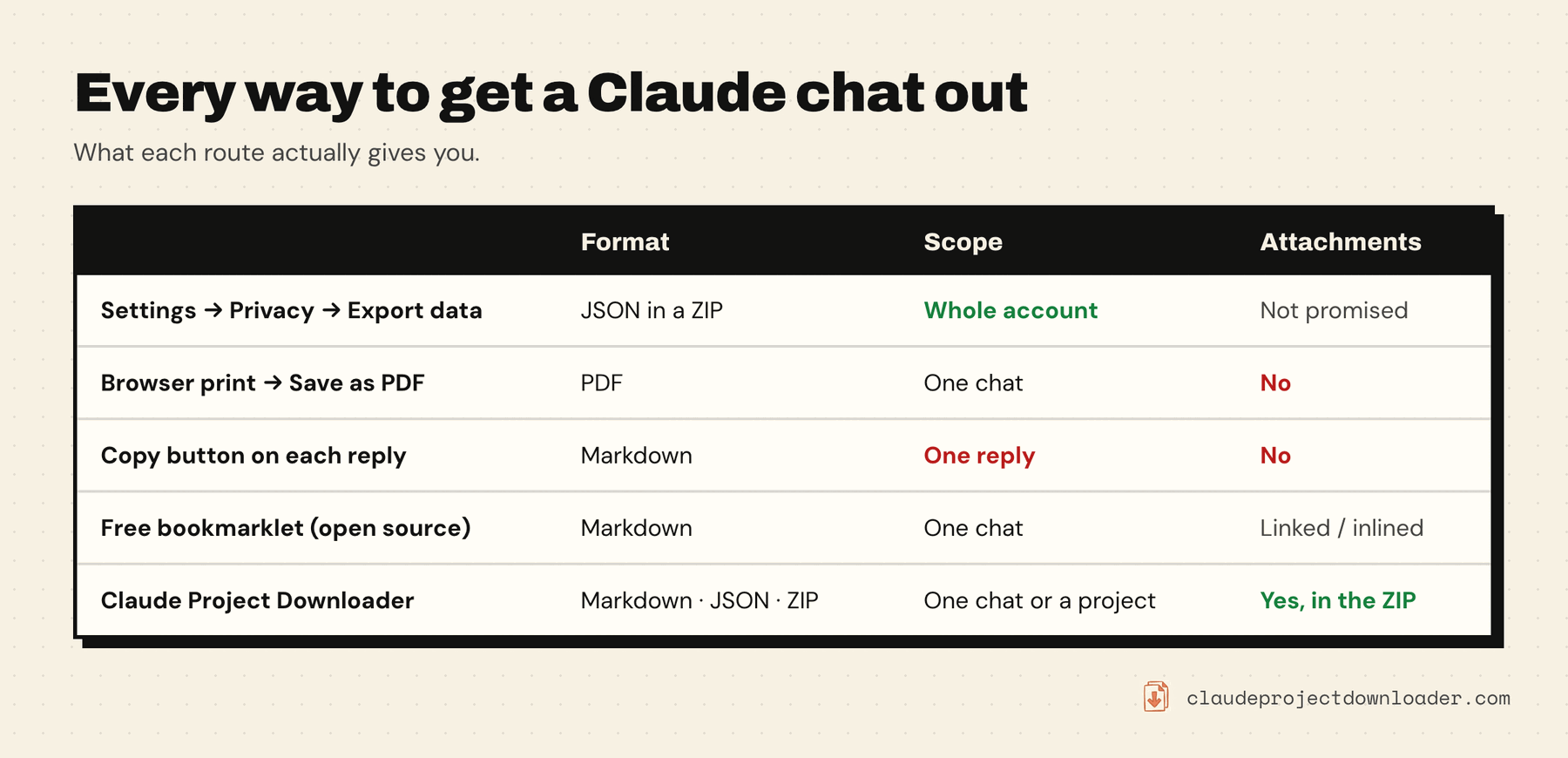
Yes, you can export your Claude chats. To get all of them, use Claude's own export: click your initials in the lower-left corner, open Settings → Privacy, and press Export data. Anthropic emails you a download link with your whole chat history as JSON. To save one chat as a readable file (Markdown, or a PDF made from it), you need either a little manual work or a browser tool. Both are covered below, built-in options first.
Everything here works on chats in your own Claude account, the ones you can already open. None of these methods reach anyone else's conversations.
Export every Claude chat with the built-in data export
This is Anthropic's official route, and it costs nothing. According to Claude's help center:
- Click your initials in the lower-left corner of claude.ai (or Claude Desktop).
- Choose Settings, then the Privacy section.
- Click Export data.
- Wait for the email. It goes to your account's address and contains a download link.
- Open the link while signed in to Claude. It expires 24 hours after it arrives, so download it straight away. If you miss it, request a new export.
Points worth knowing before you rely on it:
- It's JSON, not documents. You get raw data files (conversations, account information), not one readable file per chat. That's fine for an archive or a script, but awkward if you want to read a chat or hand it to someone.
- It's all or nothing. You can't pick one chat or one project.
- Not from the phone apps. Exports can only be started from the web app or Claude Desktop.
- Team and Enterprise plans: only the organization's Primary Owner can run exports.
- No import. Anthropic says exported data can't be imported into another personal Claude account.
If you want a complete archive and don't mind JSON, stop here. This is the right tool. To turn the JSON into readable files, see how to back up Claude projects and chats.
Export a single Claude chat for free
Copy, reply by reply. Each Claude reply has a Copy button that copies the reply as Markdown. Paste the replies into a document one by one. This works for a short chat. For a long one it's tedious, and your own messages and any files aren't included.
Share link. Claude's Share button creates a public link to a snapshot of the chat. It's a link, not a file, and it makes the chat readable by anyone who has the link. Only use it for chats you're happy to publish.
A free bookmarklet. The open-source claude-chat-exporter (MIT licence, maintained) is a bookmark you drag to your bookmarks bar. Click it on any chat and a Markdown file downloads, with artifacts, files Claude created, and attachments brought along as links or inlined text. Like an extension, it runs with your Claude session, so it's worth reading the code first. For saving the odd chat as Markdown, this is honestly all you need.
If you only ever need one chat at a time as Markdown, a free bookmarklet or a free extension covers it. Claude Project Downloader is worth installing for project files, whole projects with their chats, and saving a chat together with its attachments in one ZIP.
Export a Claude chat to PDF
Claude has no "Save as PDF" button for a conversation. Three ways to get one:
- Print it. Open the chat, press Ctrl/Cmd + P and choose Save as PDF. It's quick, but you get the page as it looks on screen: long code blocks get cut off, the layout is cramped, and very long chats may not print completely, because the page only keeps part of a long chat loaded at a time.
- Export Markdown, then convert it. Save the chat as Markdown (any method above), open it in a Markdown editor such as Obsidian, Typora or VS Code with a Markdown preview, and export or print it to PDF from there. The result is cleaner, and code blocks and tables stay intact. Pandoc does the same from the command line.
- Use a PDF extension. Some Chrome extensions render chats straight to PDF. The most-used one, AI Chat Exporter, lists 3 free PDF exports a day on its Web Store page, with its other formats free.
Claude Project Downloader does not export PDF. It saves Markdown, JSON, and ZIP. If a PDF of a single chat is all you want, option 1 or 2 is enough.
Export a chat with its attachments and Claude's files
This is the case the free routes don't cover well. If you uploaded PDFs or images to a chat, or Claude made files in it (a .docx, a script, a spreadsheet), a Markdown file alone loses them.
Claude Project Downloader adds a Download button next to Share on every chat page. The first click asks which format you want:
- ZIP with attachments (recommended): the full Markdown transcript plus a folder of everything you uploaded and the files Claude created, fetched the same way Claude's own Download button fetches them.
- Markdown (.md): a clean transcript, ready for Obsidian, Notion or your notes. Files Claude wrote out in full appear in the transcript as code blocks.
- JSON: the raw, lossless conversation data.
Tick Remember my choice to make later downloads one click. Hold Shift while clicking Download to choose a different format.
If a file can't be fetched, for example because Claude never saved it where it can be downloaded, the ZIP includes a short note naming the file instead. Then you know to grab it from the chat by hand. Nothing is skipped silently.
Export all the chats in a Claude project
Open the project on claude.ai, click the extension icon to open the side panel, and choose Download All Chats. You get one ZIP of transcripts (Markdown or JSON, chosen under Export settings), with attachments optional. Download Entire Project adds the project's instructions and knowledge files to the same ZIP. The details are in how to download all files from a Claude project.
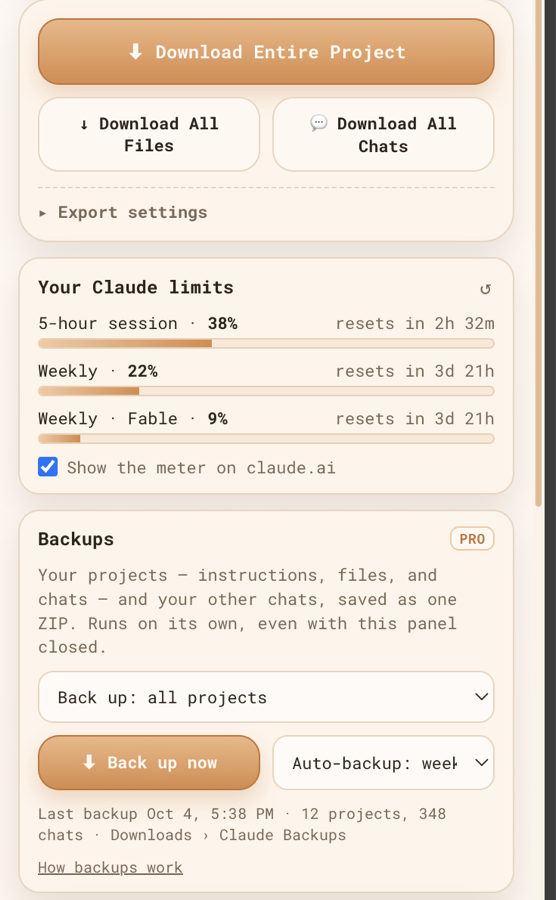
On the free plan you get 5 single downloads a day (a chat or a file) and one bulk export (all files, all chats, or the entire project). Pro removes both limits.
Export every Claude chat as readable files
The official export already contains every chat, but as JSON. To get the same coverage as one Markdown file per chat, sorted by project, use a full backup. That's a Pro feature of Claude Project Downloader (Back up everything), and it can run automatically every day or week. If you'd rather not pay, free command-line tools can turn the official JSON into Markdown. Both routes are in the backup guide.
Claude Code conversations are different
Chats in Claude Code (the terminal tool) don't live on claude.ai, so none of the methods above apply. Claude Code stores sessions locally on your computer and has its own /export command for saving the current conversation.