Export Claude Design Projects Before December 14, 2026
Export Claude Design projects as a ZIP, move them into Claude, and save the chats that won't move, before claude.ai/design closes on December 14.
To export a Claude Design project, open it at claude.ai/design, click Share, choose Project HTML, keep Project archive selected and click Export. You get a .zip with every file in the project, and it doesn't count toward your usage limits. Do it before December 14, 2026, when the standalone site closes. Your chats and comments aren't in that ZIP and don't move to Claude, so save what you need from them separately.
This guide is about your own Claude Design projects, the ones you can already open at claude.ai/design. Every step comes from Anthropic's help center as checked on 2 November 2026. Anthropic updated its migration guide on 30 October, so older articles that say projects can't move yet, or can't be downloaded in bulk, are out of date.
What happens when claude.ai/design closes
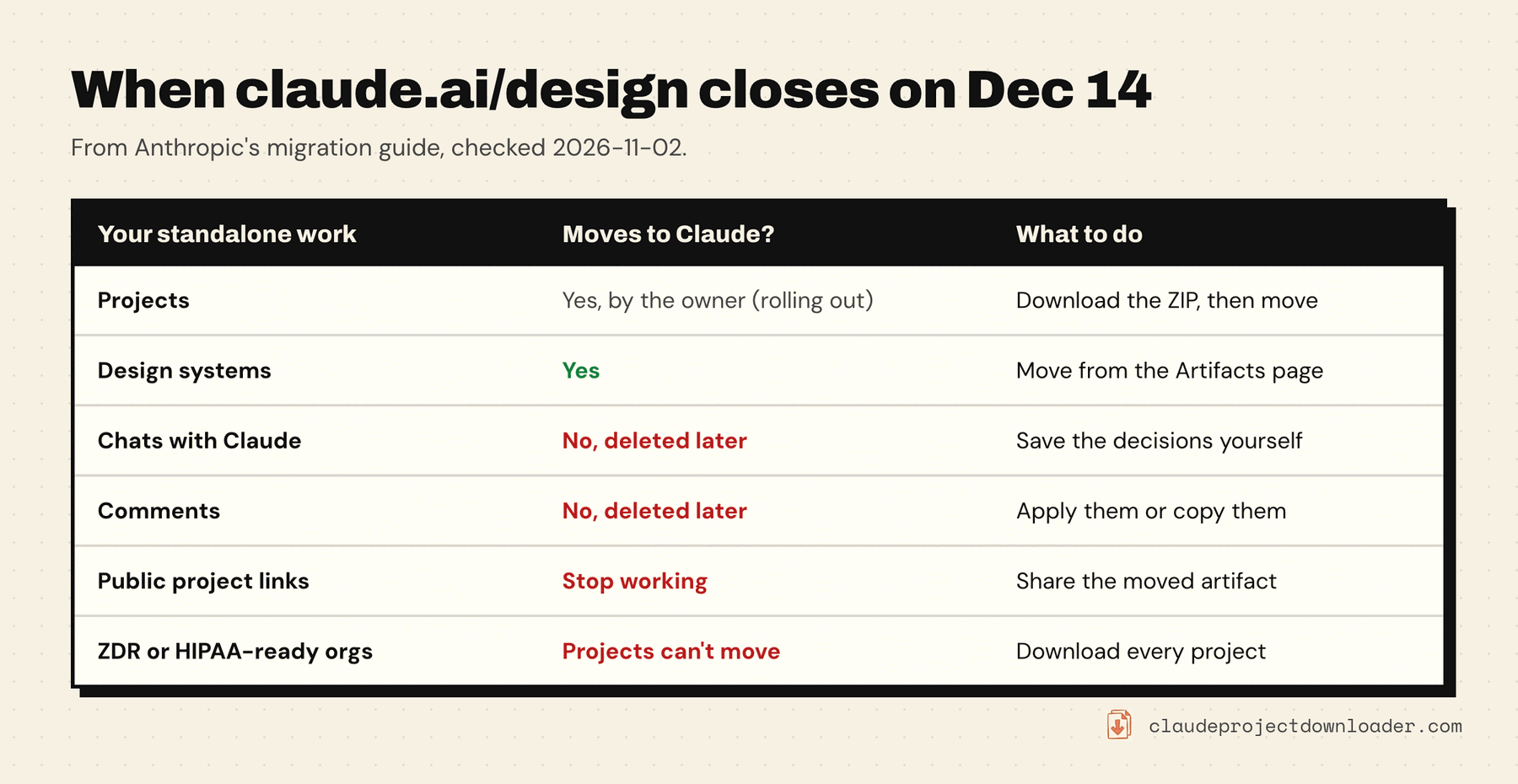
Claude Design now lives inside Claude. It's one of the templates you can start an artifact from, in a chat, in the Artifacts tab or in Claude Code, according to Anthropic's Claude Design guide. The old standalone site keeps working until December 14, 2026. Anthropic's migration guide says what happens then:
- The site becomes read-only. You can't start new projects there. The owner of a project that hasn't moved can still change its files, so it can be fixed and moved later.
- The originals are deleted some time after that, under Anthropic's data retention practices. The guide gives no date, so don't plan around one.
- Chats with Claude and comments go with them. They never move to Claude.
- Public links to standalone projects stop working.
That leaves you two jobs before the deadline: keep a copy of each project you care about, and save anything from its chat that you'd miss.
How to export Claude Design projects as a ZIP
- Open the project at claude.ai/design.
- Click Share, then choose Project HTML. For a slide deck, it's under More formats and apps.
- Keep Project archive selected and click Export.
- Open the .zip and check that the files you expect are there.
Anthropic says the archive holds every file in the project, costs nothing and doesn't count toward your usage limits. Rename each ZIP after its project as you go, so a folder of exports still makes sense next year.
Download all your Claude Design projects at once
Anthropic is rolling out a download of every project you own together with Move to Claude. Once you have it, you'll find it on the home page of the standalone version. It includes your files but not your chats or comments, and organizations with the HIPAA-ready configuration don't get it. If you don't see it yet, export Claude Design projects one at a time, starting with the ones you can't lose.
Other formats: PDF, PowerPoint, HTML or Figma
The ZIP is the safest copy because it keeps every file. When you need something other people can open, Claude Design's Export button (top right of a project) offers PDF, PowerPoint, Google Slides and standalone HTML. It can also send the design to tools such as Canva, Miro, Lovable or Vercel, or hand it to Claude Code. Figma isn't on that list. The html.to.design Figma plugin documents importing the project archive as editable layers. It's a third-party plugin, so check its pricing and results yourself.
Move a Claude Design project into Claude
Moving is the other route. A moved project becomes an artifact on the Artifacts page in Claude, where you keep editing it. Anthropic is rolling this out gradually to paid plans, so you may not have it yet.
- Open the project at claude.ai/design. Only its owner can move it.
- Start the review from the pop-up or from the banner at the top of the project.
- Read the review. It lists what moves, what will work differently and what stays behind, and it offers a .zip copy. Download that copy.
- Confirm the move and keep the tab open until it finishes.
- Open the project in Claude, where it's now on the Artifacts page.
After the move, the standalone copy is read-only for everyone, and you can't undo it. Its chats and comments stay in that copy, where you can read them until the site closes. Sharing carries over where Claude supports it.
You can also move all your own projects at once, or only the ones you pick. On Team and Enterprise plans, an Owner or the Primary Owner (not an Admin) can use Move everything on the Artifacts page, which moves everyone's projects, templates and design systems. A project whose owner has left goes to an owner of the organization, usually the Primary Owner.
Some organizations can't move, or can only move slowly:
- Zero data retention (ZDR): artifacts can't be turned on, so nothing moves. Download every project you need.
- HIPAA-ready configuration: projects can't move right now, and there's no download-all. Export them one at a time.
- Customer-managed encryption keys (CMEK): one project at a time, with no bulk moves.
- Team and Enterprise: artifacts must be on for the organization, and on Enterprise plans with custom roles, for your role too.
One Enterprise catch: if your organization has a retention period that covers artifacts, a moved project can be permanently deleted when nobody opens it for that long. The clock starts on the day of the move. Keep the ZIP even after a move works.
Move your Claude Design design systems
Design systems are separate from projects. Until Move to Claude reaches your organization, they have their own move:
- Open the Artifacts page in Claude.
- Click Move team design systems in the "Claude Design lives here now" banner. If you closed the banner, open the … menu on the Design tile instead.
- Click Move to confirm (individual plans start right away), then check the results.
One move brings over every design system in your organization, including other people's, and anyone who can use Claude Design can start it. Once Move to Claude is available to you, design systems move the same way as projects.
Empty design systems don't move, and neither do ones made from a built-in starter theme, even if you edited them. If one fails, the results give a reason such as "it's too large". Click Fix in Claude Design Standalone, run Check, and fix what it lists. The uploads folder often holds duplicate files, so it's a good place to start trimming. If the card says "Can't move this design system" without a reason, click Download design system to keep its files.
Check sharing before you start. A published design system that isn't private becomes visible to everyone in your organization after the move. On individual plans, nothing is shared.
Save your Claude Design chats and comments
This is the part most people will lose. Chats and comments don't move, they aren't in the project archive, and Anthropic's guide doesn't describe a way to export them. It only says to save anything you need before the site closes. Here's how:
- Ask Claude to write it down inside the project. In the project's chat, ask something like: "Write a file called DECISIONS.md in this project listing every design decision we made in this chat, why we made it, and what's still open." Check that the file shows up, then export the ZIP. The archive includes every file in the project, so the notes travel with the design. It's a summary, not a transcript, and it uses your normal Claude usage, so read it before you rely on it.
- Copy the messages that matter. Select the text in the chat and paste it into a document. Keep the brief, the prompt behind the final version and other people's feedback word for word.
- Deal with comments now. Ask Claude to apply the open ones, or add them to the DECISIONS file. A screenshot of the comments view is a quick extra record.
- Replace public links. Anything you shared from the standalone site stops working. After a project moves, share the new artifact instead.
Back up the rest of your Claude work
A Claude Design project is often only one piece of the job. The brief, the research and the copy usually sit in ordinary Claude chats and projects, which have their own export routes. Anthropic's account export (Settings → Privacy → Export data) covers your chat history as JSON, and the guide to backing up Claude projects compares it with the other options.
Claude Project Downloader is a Chrome extension for that side, so here are its limits first. It doesn't open claude.ai/design and can't export standalone Claude Design projects or their chats. It works on the chats and projects you can already open on claude.ai and claude.ai/code:
- a Download button next to Share on each chat saves it as Markdown, JSON, PDF, or a ZIP with the chat's files
- Download Entire Project saves a project's instructions, knowledge files and chats in one ZIP
For a design you've moved into Claude, use the artifact's own Export button. The guide to downloading Claude artifacts lists the formats for each template. Claude Project Downloader saves the chat around a design, not the design itself.
The free plan gives you 5 single downloads a day plus one bulk export, such as one whole project. Pro removes both limits and adds scheduled backups.