How to use Claude Project Downloader
Hi, I'm Aarohan. I made this extension to save your own Claude projects and chats. Here's how to use all of it: a 4-minute video, then a few steps for each feature.
How to Download Project Files From claude.ai · 4 min · Watch on YouTube
Everything it can do
Each feature is marked Free, Pro, or Free with limits. See what Pro adds.
1. Get started
FreeIt works on your own claude.ai account: the projects and chats you can already open. No sign-up, it uses the Claude login you already have.
- Add it from the Chrome Web Store (Chrome, Brave, Opera, Vivaldi) or Edge Add-ons.
- Pin it: click the puzzle piece in the toolbar, then the pin next to Claude Project Downloader.
- Open claude.ai and click the icon. The side panel opens on the right. (Opera shows it as a pop-up.)
2. Download a whole project
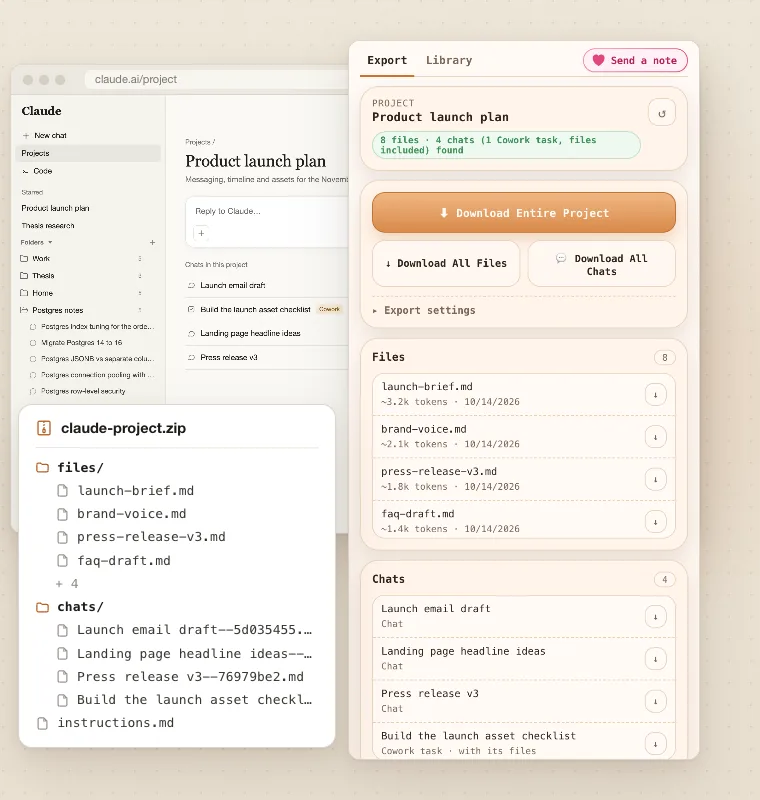
Free once, then ProEvery knowledge file, chat and the instructions of one project, in one ZIP.
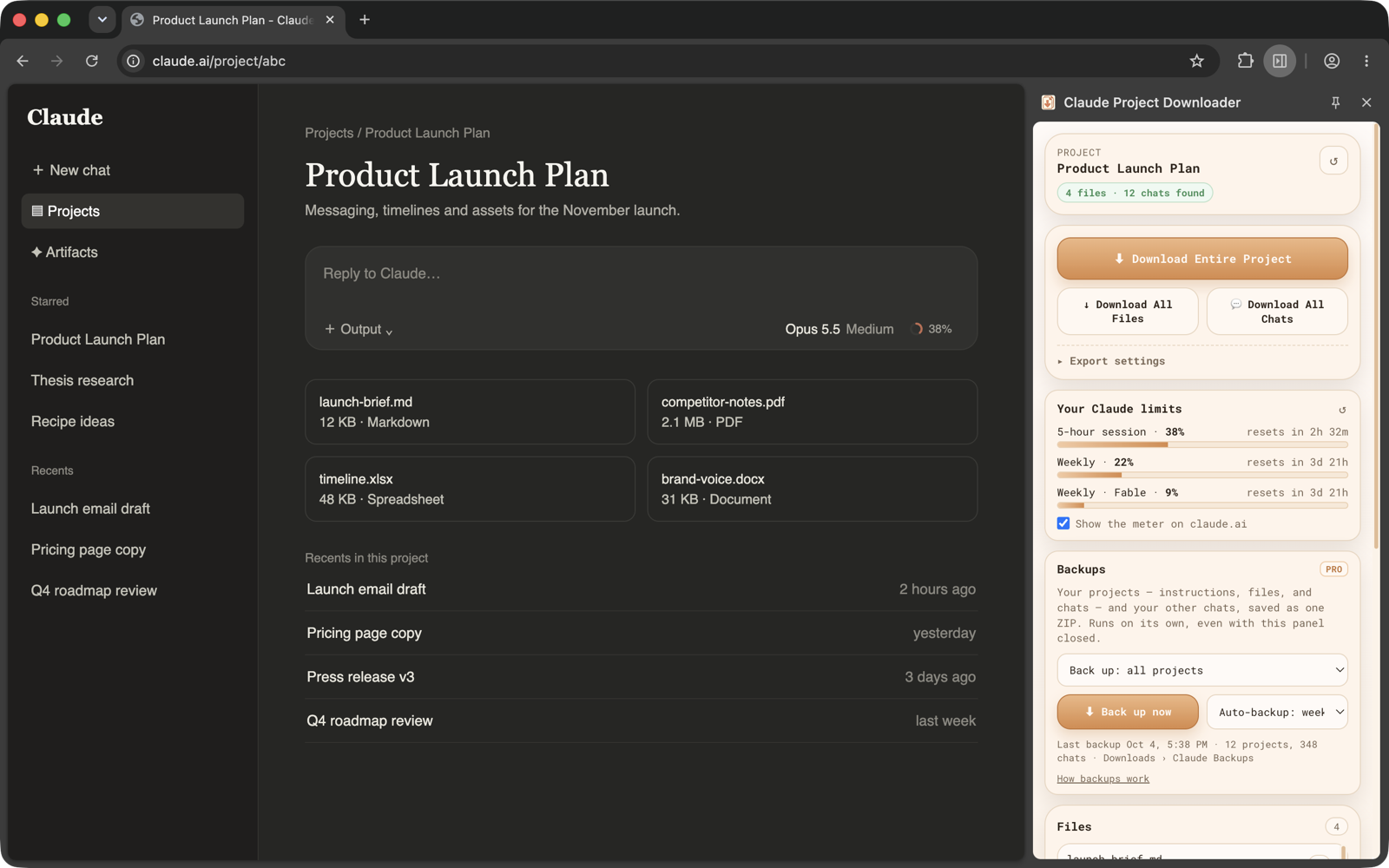
- Open the project on claude.ai and click the icon. The panel lists its files and chats.
- Click Download Entire Project. You get one ZIP with
files/,chats/and the instructions. - Only want half? Use Download All Files or Download All Chats, or the ⬇ next to any single file. Export settings picks the formats.
Free plan: one full export (whole project, all files or all chats), plus 5 single downloads a day. Pro has no limits.
3. Save one chat as PDF, Markdown, ZIP or JSON
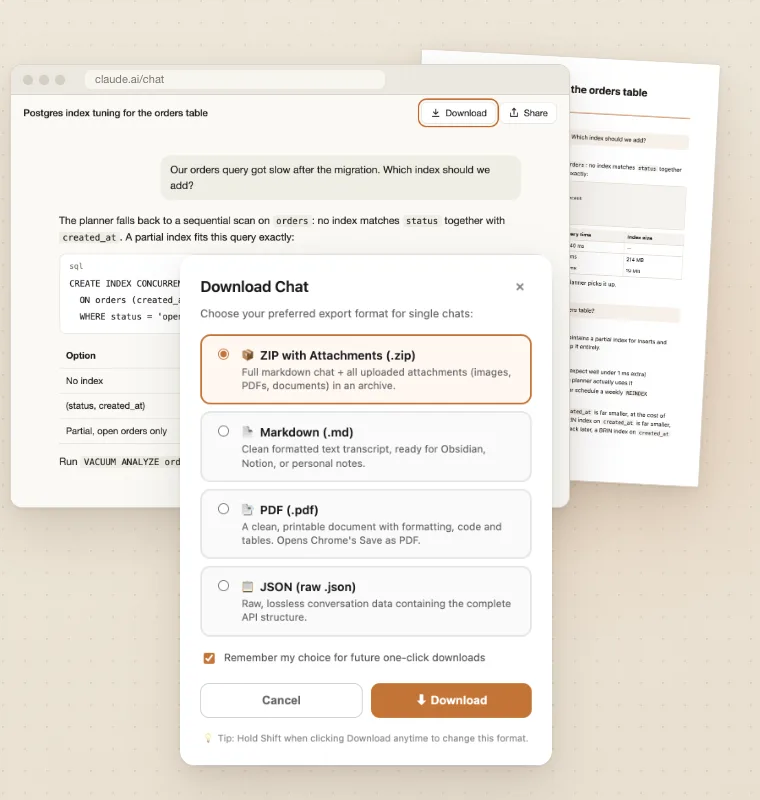
Free with limitsA Download button sits right next to Claude's Share button, on every chat.
- Open the chat on claude.ai and click Download next to Share.
- Pick a format: ZIP with attachments, Markdown, PDF or JSON. PDF opens Chrome's print window: choose Save as PDF.
- Tick Remember my choice for one-click saves. Shift-click Download to pick another format later.
Free plan: each chat counts as one of your 5 downloads a day.
4. Claude Code sessions and Cowork tasks
Free with limitsThe work you do in Claude Code and Cowork on claude.ai can be saved too.
- A Claude Code session on claude.ai/code: use the same Download button next to Share.
- A Claude Code project: open it on claude.ai and click the icon. The panel exports it like any project (Claude doesn't hand over its instructions, so paste those in yourself).
- Cowork tasks inside a project show up in the panel's chat list, with their files, and go into the project ZIP.
More detail: how to export a Claude Code conversation.
5. Move a project to Claude Code
Free once, then ProTurns a claude.ai project into a folder Claude Code understands, then gives you the prompt to set it up.
- Open the project, click the icon, then Move to Claude Code (under Download Entire Project).
- It saves
<project>_claude-code.zip:CLAUDE.mdwith your instructions,docs/with the files,chats/in Markdown. - A prompt appears, already copied, with the ZIP's location. Open Claude Code in an empty folder, paste it and press Enter. Claude Code unzips the project and sums up your chats.
Pro. On the free plan it uses your one free full export. Full guide: move a Claude project to Claude Code.
6. Export everything in your account
Free with limitsYour whole Claude account, saved to a folder you pick: every chat, project, file, memory and style.
- Click the icon, then Export everything. A page opens and finds what's in your account.
- Pick a folder on your computer when it asks.
- It saves everything into that folder. Keep using Chrome while it runs. If it stops, open the page again: nothing is saved twice.
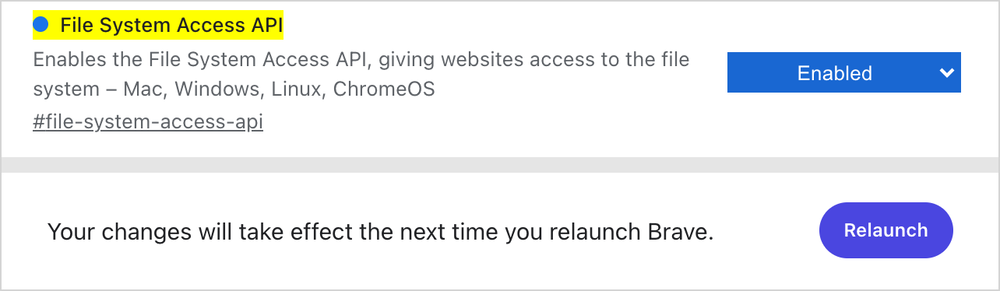
Free plan: it saves your newest chats, up to your free downloads for the day. Pro saves the rest. Brave hides the folder picker: open brave://flags/#file-system-access-api, set it to Enabled and relaunch. Step by step: Claude Project Downloader in Brave.
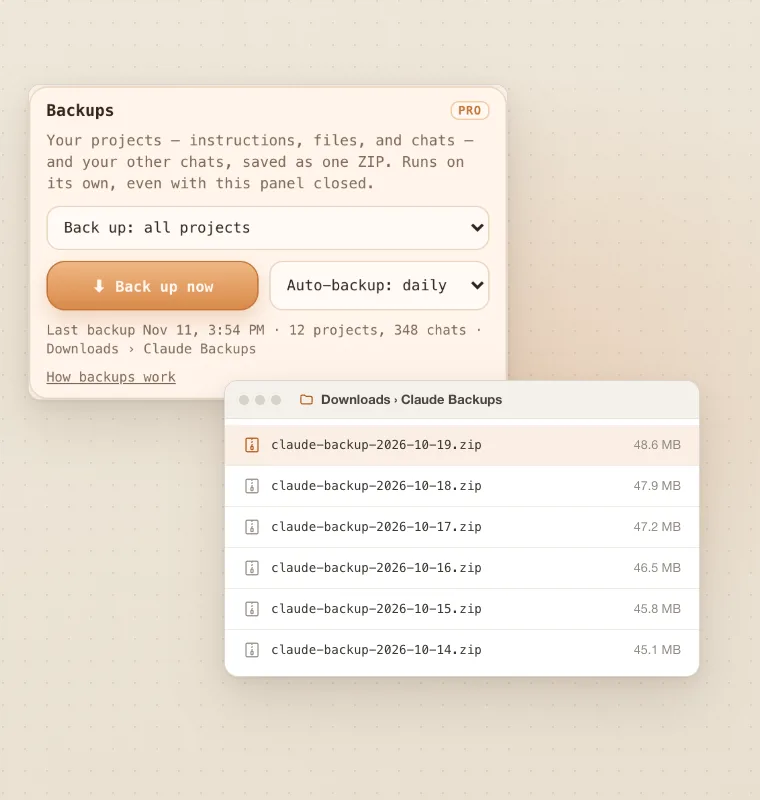
Your projects (instructions, files and chats) and your other chats, saved as one ZIP. Runs on its own, even with the panel closed.
- Click the icon and find Backups.
- Choose all projects or projects I choose (and whether to include chats outside projects).
- Press Back up now, or set Auto-backup to daily or weekly. The ZIPs land in Downloads › Claude Backups, as long as Chrome is open.
8. Folders, search and bulk actions
Free with limitsSort your chats right in claude.ai's sidebar, and search inside every message, not just titles.
- In claude.ai's left sidebar, find Folders and press New folder. Open a chat or project and press + next to a folder to add it.
- To search: click the icon, open the Library tab and type in Search every message. The index is built on your computer.
- Tick chats in the Library to move them to a folder, export them or delete them in one go.
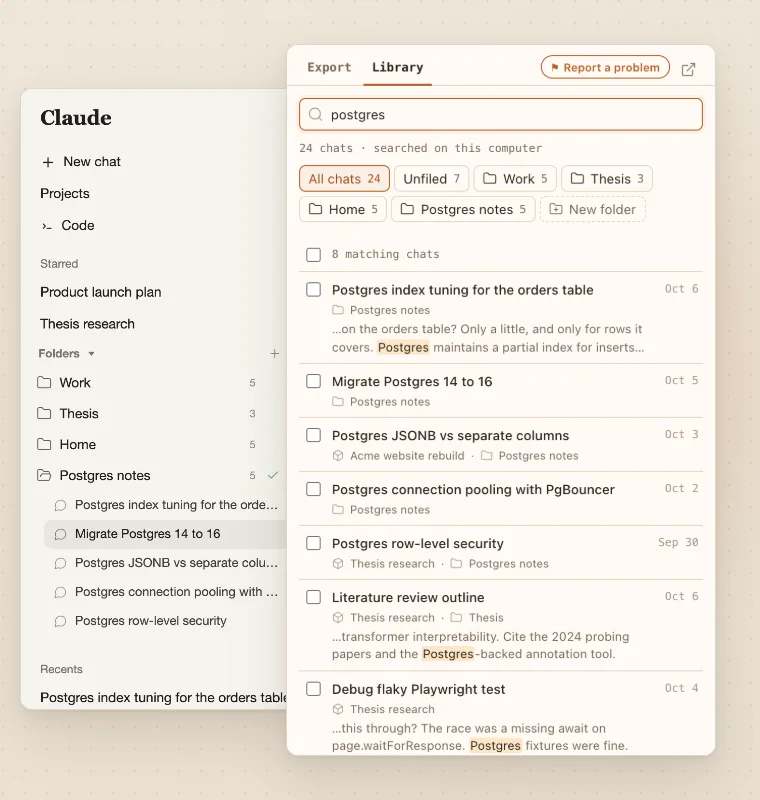
Free plan: 3 folders, the top 5 search matches and 5 chats per bulk action. Pro removes all three limits.
Your 5-hour session and weekly limits, live, so they don't surprise you mid-task.
- On claude.ai, a small ring next to the model picker shows how much of your session you've used.
- Click it for your session and weekly limits, when they reset, and an estimate of the open chat's length.
- The same numbers sit in the panel under Your Claude limits. Untick Show the meter on claude.ai to hide the ring.
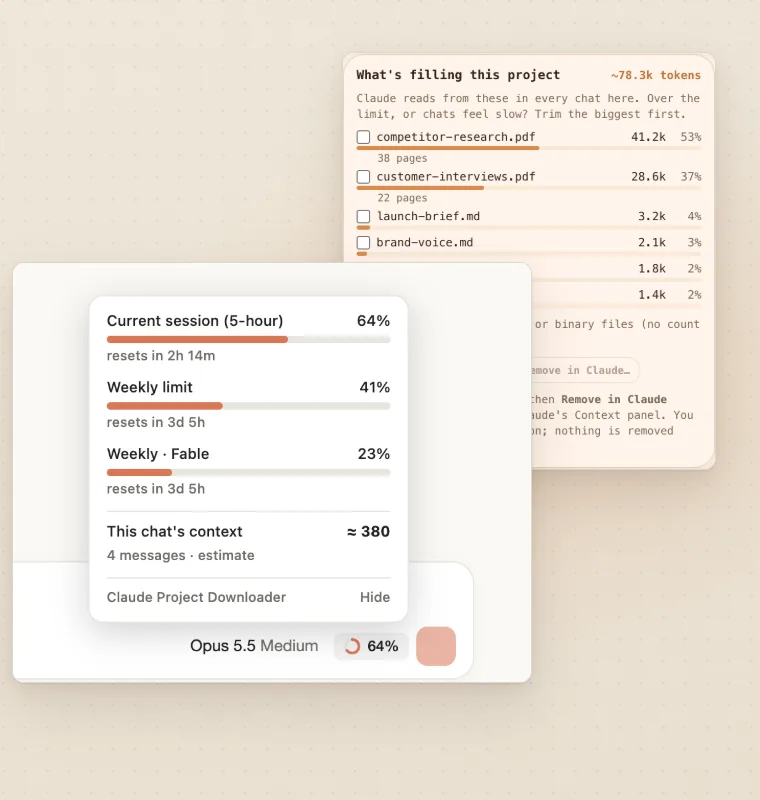
Shows which files take up a project's space, in the tokens Claude counts, not megabytes.
- Open a project and click the icon. Find What's filling this project.
- Files are ranked biggest first, with the instructions counted too. Back up checked (ZIP) saves the ones you tick.
- To trim, tick files and press Remove in Claude. It only ticks them in Claude's Context panel. Nothing is deleted until you press Claude's own delete button.
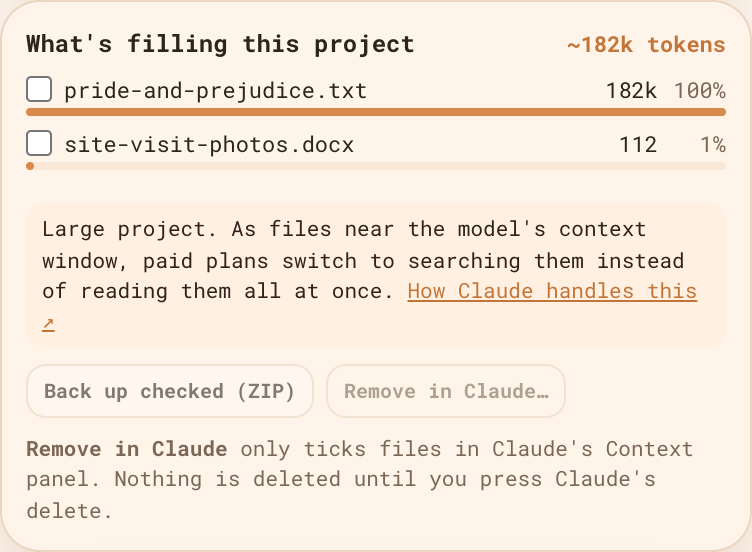
Why it matters: project knowledge exceeds maximum.
Exports over 1 GB are split so your browser doesn't run out of memory.
- Export as usual. Past 1 GB you get complete ZIPs named like
Project (part 1 of 3).zip. - Chrome asks where to save each part. Unzip all of them: together they hold everything.
- It still counts as one export, and Move to Claude Code lists every part in its prompt.
Get it back by email in a minute.
- Click the icon and scroll to the licence key box.
- Press Lost your key? Email it to me and enter the email you paid with.
- Every key on that email arrives in your inbox. Paste it and press Activate.
On a new computer with Chrome sync on, your key comes back by itself. More: support.
If something breaks, tell me. I read every report myself.
- Click Report a problem at the top of the panel (at the bottom, if you have Pro). Say what happened.
- If an export fails, a bar says Something went wrong. Press Send report: the error is already filled in.
- Add your email if you want a reply. I look at it within 12 hours.
Stuck right now? Try the troubleshooting guide.
Free or Pro?
Free, forever
- ✓ 5 single downloads a day (files or chats)
- ✓ One full export
- ✓ 3 folders, top 5 search matches
- ✓ 5 chats per bulk action
- ✓ Usage meter and What's filling this project
Pro
- ✓ Unlimited downloads and exports
- ✓ Move to Claude Code, any time
- ✓ Unlimited folders, search and bulk actions
- ✓ Backups, on demand or daily/weekly
- ✓ Export everything in one go
Still stuck?
The troubleshooting guide fixes most problems. Keys, plans and refunds are on the support page. Or write to me:
support@claudeprojectdownloader.comDon't have it yet? Add it to Chrome, free